Serverless deploying Angular 8 on AWS S3, C# tutorial

Photo by Scott Webb on Unsplash
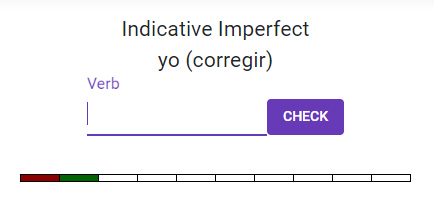
Code for this article is available on GitHub. Project WebConjugacion.csproj is an Angular8 application without backend code. It is a Spanish conjugation trainer which asks you to put a verb in some random form and checks you answer:
 Services are implemented as .json-files in the assets folder. Angular client send get requests, but there is no any custom backend code envolved. Web-server just need to return the whole file:
getTenses(): Observable<Mood[]> {
  const httpOptions = {
    headers: new HttpHeaders({
      'Content-Type': 'application/json'
    })
  };
return this.http.get<Mood[]>(‘filterTree.json’, httpOptions)
.pipe(
catchError(err => {
return throwError(err);
}
)
);
}
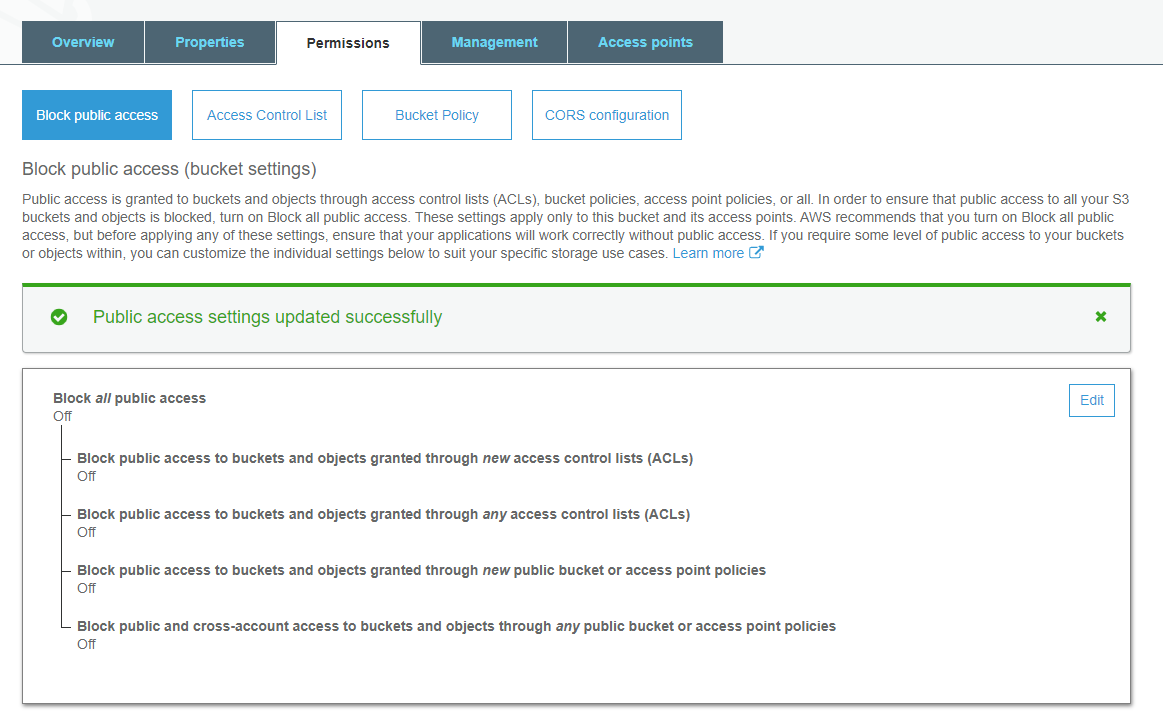
I have created an S3 bucket named kborisov-aws-test-artifacts and now we need to give public access to it. You can do that either during the bucket creation or after, in the settings. Tab Block Public Access has a bunch of checkboxes and I just reset all of them.
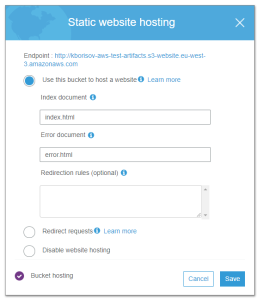
Convertion of the bucket to a web server is done at the Properties tab. There is a “Static website hosting” item which is disabled by default. Enable it and click “Save” and that’s it:
Policy at the Permissions -> Bucket Policy is used to control access. I have everything accessible in my bucket:
{
    "Version": "2012-10-17",
    "Id": "StaticWebsiteReadAllowed",
    "Statement": [
        {
            "Sid": "Stmt2586028788337",
            "Effect": "Allow",
            "Principal": {
                "AWS": "*"
            },
            "Action": "s3:GetObject",
            "Resource": "arn:aws:s3:::kborisov-aws-test-artifacts/*"
        }
    ]
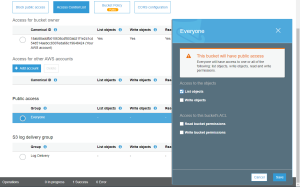
}For debug purposes it is good to allow listing objects in the bucket. In this case you will get usual 404 error if you try to access file which does not exist. Otherwise you will get 403 Access Denied which is not informative:
Ok at this point our bucket is prepared to serve as a web-server for our code, but our code is not quite ready yet. By default Angular code is expected to be placed in the root folder of the server and this is how Debug mode works. But I wanted to have my site in a subfolder. Let’s configure our Angular app to be placed in the folder /aws-test/aws-publish/ClientApp/dist/.
It is done by setting base-href parameter. I modified package.json by adding build:Debug and build:Release scripts:
 "scripts": {
    "ng": "ng",
    "start": "ng serve",
    "build": "ng build",
    "build:Debug": "ng build --dev --base-href /",
    "build:Release": "ng build --prod --base-href=/aws-test/aws-publish/ClientApp/dist/",
And now we need to modify the project file to use those scripts:
<Target Name="PublishRunWebpack" AfterTargets="ComputeFilesToPublish">
    <!-- As part of publishing, ensure the JS resources are freshly built in production mode -->
    <Exec WorkingDirectory="$(SpaRoot)" Command="npm install" />
    <Exec WorkingDirectory="$(SpaRoot)" Command="npm run build:$(Configuration) -- --prod" />
    <Exec WorkingDirectory="$(SpaRoot)" Command="npm run build:ssr -- --prod" Condition=" '$(BuildServerSideRenderer)' == 'true' " />
"npm run build:$(Configuration) -- --prod". Now we can publish our solution in an aws-publish, leave only the "dist" folder since we don't need anything besides the Angular app itself and upload it to the S3. And our site is available at the address https://